 SimulationCraft WASM
SimulationCraft Guide: How to Sim Your WoW Character
Simming tells you exactly how much DPS your character can put out, and more usefully, which upgrades actually matter. This guide takes you from zero to your first simulation in a few minutes, entirely in your browser, then explains how to read the results properly.
Updated 16 August 2026 for patch 12.1 (Midnight).
In WoW, two items are rarely simple to compare. A higher item level isn't always an upgrade, secondary stats (crit, haste, mastery, versatility) are weighted differently for every spec, and set bonuses or trinkets can swing your damage in ways no tooltip shows. A simulation runs thousands of virtual fights using your exact character and tells you what actually performs best. Here's why players do it:
Compare items
Know whether that new drop, crafted piece, or vault item is really an upgrade before you spend gold, crests, or a gear slot on it.
Find your DPS ceiling
See your theoretical maximum DPS with perfect play, a benchmark to measure your real-world logs and parses against.
Prioritise loot
Find which raid boss or dungeon drops your single biggest upgrade, so you farm the right content and spend tokens wisely.
What is SimulationCraft
Every one of those numbers comes from SimulationCraft (usually shortened to SimC), a free, open-source engine that models WoW combat in extreme detail. It knows every spec's rotation, talents, gear, trinkets and set bonuses, then simulates thousands of fights to produce a statistically stable DPS number.
Technically it's an event-driven combat simulator written in C++. Rather than applying a formula to your stat sheet, it plays out a fight tick by tick: casts land, procs fire, cooldowns come back, resources build and get spent. Each of those thousands of runs produces a slightly different result, because crit, procs and resource timing are random. Averaging across all of them is what turns a noisy single fight into a number you can actually trust.
The rotation logic itself comes from an APL (Action Priority List), a per-spec script describing what a skilled player would press and when. These are maintained by theorycrafters who follow each spec closely, which is why simulation results track the community's understanding of a spec rather than any one person's opinion.
It's effectively the only large, actively-maintained sim project for the game. Well-known sites like Raidbots, and tools like this one, are all front-ends running the same SimC engine under the hood, so the math you get is the community standard, whichever you use. What differs between them is convenience, cost and speed, not correctness.
Which sim should you use?
There are three realistic ways to run SimC, and they suit different situations. All three produce the same numbers given the same settings.
| This tool (browser) | Raidbots | Desktop SimC | |
|---|---|---|---|
| Setup | None — open a page | None — open a page | Download & keep updated |
| Cost | Free, all features | Free tier + Premium | Free |
| Queue | None — runs instantly | Yes on free tier | None |
| Runs on | Your CPU, in-browser | Cloud servers | Your CPU |
| Privacy | Profile never leaves the browser | Uploaded to their servers | Fully local |
| Very large batch jobs | Limited by your machine | Best option | Limited by your machine |
| Deep customisation | Common options exposed | Most options exposed | Everything |
For everyday gearing questions — is this drop an upgrade, which vault slot do I take, which trinket wins — the browser option is the fastest path, because there's nothing to install and nothing to wait behind. Reach for the desktop build if you want to edit APLs or run unusual multi-hour experiments. See the full Raidbots comparison if you're weighing that specifically.
Step 1: Install the SimC addon
SimC needs a precise description of your character. Typing all of that out by hand would be miserable, so an in-game addon does it for you. You only install it once:
- Open the CurseForge app (or your addon manager) and search for SimulationCraft, or grab it straight from the link below.
- Install it, then fully restart WoW (or type /reload in chat).
- In game, type /simc into the chat box and press Enter.
Prefer to do it manually? Download the zip from CurseForge and extract the SimulationCraft folder into
World of Warcraft/_retail_/Interface/AddOns.
Any addon manager works — WowUp and the CurseForge client both list it under the same name.
Two things go wrong often enough to be worth calling out. First, after a patch the addon is frequently flagged as out of date: tick Load out of date AddOns in the AddOns list on the character select screen, and it will usually keep working until the author pushes an update. Second, if /simc produces no response at all, the addon almost certainly isn't loaded — check it's enabled for the character you're logged in on, not just installed on disk.
Step 2: Export your character
Typing /simc opens a window containing a big block of text. That's your character profile. The text is already selected, so just copy it (Ctrl+C).
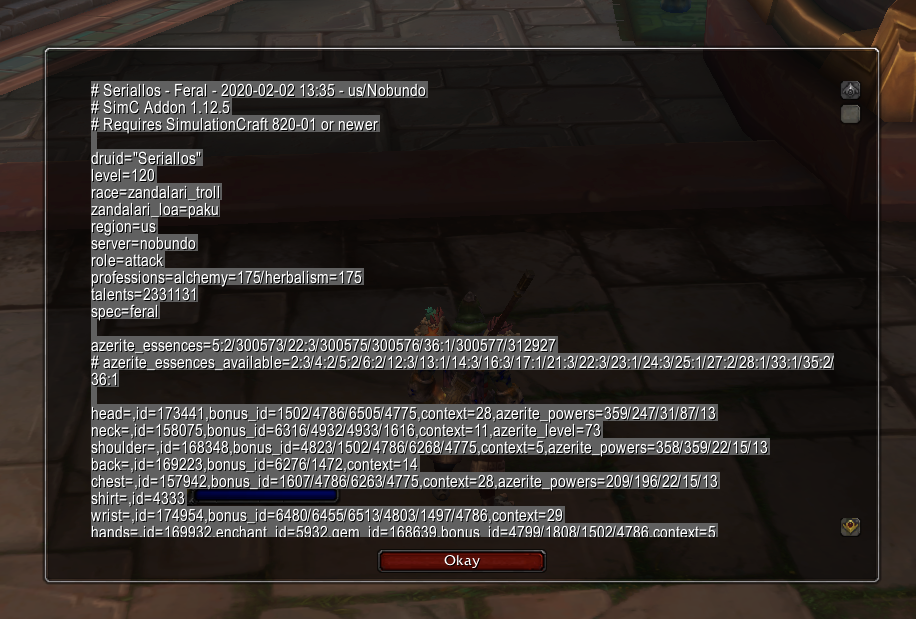
That text contains everything the simulator needs:
- Class, spec & race and character level
- Your full talent loadout
- Every equipped item with its exact item level, enchants, gems and bonus IDs
- Your bag items, listed as alternatives you can sim against your current gear
The same trick applies more widely than people expect. Anything the game client has loaded into memory can end up in the export, so opening your void storage, or visiting a vendor whose stock you want to evaluate, before running the command will pull those items in too. If an item you expected to compare isn't showing up in your results, a missing window at export time is the usual cause — re-export with it open.
Embellishments and crafted gear work the same way: they're described by bonus IDs inside the item line, so a crafted piece with its embellishment applied exports correctly with no extra steps. If you want to test an embellishment you haven't crafted yet, you'll need to edit the profile by hand — see the profile string section below.
Step 3: Run the simulation
Now you just need something to run the profile. The simplest option is right here: paste your profile, choose what you want to know, and hit Run. Everything runs locally in your browser via WebAssembly. No downloads, no uploading your data, no server queue.
SimC Profile
Then choose a mode depending on what you want to find out:
Which one you want depends entirely on the question you're asking, and picking the wrong mode is the most common way to waste a run:
- DPS Sim — one number for your character as it stands. Use it to establish a baseline before changing anything, or to check the effect of a talent change. It's the fastest mode and the one to start with.
- Droptimizer — simulates every possible drop from a raid or dungeon against your character and ranks them. Use it before a raid night to know what to roll on, or to decide which dungeon to farm.
- Gear Compare — takes specific items you already have access to (bags, bank, Great Vault, a loot table) and ranks them against what you're wearing. This is the vault-decision mode.
- Charts — bulk comparison across a range of item levels, useful for questions like "at what item level does this trinket overtake the one I have?" rather than a single yes/no.
Within a minute you get a ranked breakdown: your current DPS, and exactly how much each item or upgrade changes it:
- Paste your /simc profile into the box (or import straight from the Armory).
- Pick a mode: DPS Sim for a single number, or Droptimizer / Gear Compare to rank your upgrades.
- Hit Run and read the results.
Reading your results
This is the part most guides skip, and it's where most bad gearing decisions come from. A sim gives you a number; knowing how much to trust that number is a separate skill.
The headline DPS figure is a mean across every iteration, not a prediction of your next pull. Because crit and procs are random, individual fights land above and below it. What matters is that the average is stable enough that re-running the same profile gives you roughly the same answer.
That stability is what target error controls. It's the margin of uncertainty around the result, and the single most important number on the page after DPS itself. If your sim reports 1,237k DPS with an error of ±0.2%, that's roughly ±2.5k. Any difference smaller than that is noise, not a finding.
In a Droptimizer or Gear Compare run, each row is a separate simulation of your character wearing that one item, with everything else held constant. The change column is the difference from your baseline. This is why the ranking is trustworthy even when the absolute DPS number isn't your real-world output: every row shares the same assumptions, so the comparison between them is clean even if the shared baseline is optimistic.
Three things routinely surprise people. Higher item level can be a downgrade, because item level only sets the total stat budget — how it's split across crit, haste, mastery and versatility often matters more. Tier pieces punch above their item level, because the sim counts the 2-set and 4-set bonuses, so a lower-ilvl tier piece can beat a higher-ilvl one that breaks your set. And trinkets are spec-dependent to an extreme degree — an on-use trinket that's best-in-slot for one spec can be mediocre for another, which is exactly the kind of question sims exist to answer.
Finally, don't read the absolute number as your expected parse. The sim assumes no movement, no mechanics, no deaths and near-optimal cooldown usage. It's a ceiling and a comparison tool. If your logs come in below it, that gap is normal and is itself useful information about where your play can improve.
What a simulation can't tell you
Knowing the limits is as valuable as knowing the output. A sim has no model of encounter mechanics: it doesn't know that a boss goes immune at 40%, that you'll spend twenty seconds running to a far add, or that your raid needs you to soak something during your burst window. Fights with heavy forced downtime consistently favour specs that the sim rates lower.
It also can't model you. The APL plays the spec close to perfectly and never misses a global. If a build is theoretically strong but demands flawless execution under pressure, the sim will rank it above a more forgiving build that you'd personally play better. When two options are within a percent or two, the one you can execute reliably is the correct pick regardless of what the ranking says.
And it has no view of your group. External buffs, raid composition, and how damage lines up with other players' cooldowns all shift real output in ways a solo Patchwerk run won't reflect. Use the sim to narrow a decision to the few options that are genuinely close, then let judgement settle the rest.
Choosing a fight style
The default fight style is Patchwerk: one target, standing still, for the whole fight. It's a clean benchmark, and it's the right choice for single-target raid questions. It's also actively misleading for anything else.
Specs differ enormously in how they scale with target count and fight length. A spec with strong sustained single-target damage looks excellent on Patchwerk and can fall behind badly in dungeon pulls, while a cleave-heavy spec shows the opposite pattern. If you gear based on Patchwerk numbers and then spend your week pushing keys, you may have optimised for content you don't run.
For Mythic+, use DungeonSlice or a similar multi-target style, which models the mix of trash packs and bosses you actually meet in a key. For raid progression, match the fight length to the encounter you care about: a two-minute burn and a six-minute council fight reward different trinkets and different talent choices.
- How to sim for Mythic+ — which fight styles to use, and why Patchwerk numbers mislead for dungeons.
Stat weights & target error
A stat weight answers "how much DPS is one point of haste worth, relative to one point of crit?" They're useful as a quick mental model when you're comparing two similar pieces at a glance, or setting up a loot filter addon.
They're also the most over-trusted output in the whole tool. Stat weights are a linear approximation measured at your current gear level. They shift as your gear changes, they don't capture breakpoints, and they can't account for set bonuses or proc interactions. Whenever you can sim the actual item instead, do that — it's strictly more accurate than applying weights by hand.
- Stat weights & target error explained — what the numbers mean and when to stop trusting them.
Droptimizer: ranking loot before it drops
A Droptimizer run answers a different question from a plain sim: not "how much DPS do I do" but "of everything that can drop in this raid or dungeon, what should I actually want?" It simulates your character once per possible drop and ranks the lot by DPS gain.
That turns loot council arguments and great-vault paralysis into a sorted list. It also tells you where to spend your time: if the top five upgrades on your list all come from one dungeon, that's your farm for the week. Difficulty and key level are part of the calculation, so you can check whether a Heroic piece this week beats a Mythic piece you're unlikely to see.
- Free Droptimizer guide — rank every dungeon and raid drop by DPS gain, no premium needed.
Great Vault decisions
The vault is the highest-stakes gearing choice of your week: one pick, no take-backs, and the options are often close enough that intuition fails. Export with the vault window open (see Step 2), then run a Gear Compare across the choices.
Remember that the highest DPS gain isn't automatically the right pick. A slightly weaker item in a slot you're unlikely to fill soon can be worth more than a marginal upgrade in a slot that raid drops will replace next week, and taking a tier piece to complete a set bonus frequently beats a raw item level jump elsewhere.
- Great Vault picks — sim your vault choices before you commit.
The profile string, explained
Most of the time you never need to look inside your profile. But editing it by hand unlocks the questions the addon can't answer — testing gear you don't own, an embellishment you haven't crafted, or a different talent build without respeccing.
The file has two parts. The header describes the character itself:
The line that names your class is also the profile's name, which matters later for comparisons. Below that, one line per equipped slot:
Each field does one job. id is the item itself. bonus_id is the interesting one: a slash-separated list encoding item level, upgrade track, sockets, crafted quality and embellishments — which is why the same item id can appear at wildly different power levels. gem_id and enchant_id do what they say. To test a different version of an item, change its bonus IDs; to test a different item entirely, change the id.
For comparing variations, profilesets are far better than editing and re-running by hand. A profileset is a named copy of your character with one thing changed, and the sim runs all of them in a single pass and ranks the results — which is exactly the machinery the Droptimizer and Gear Compare modes are built on. Adding them manually looks like this:
Each line inherits everything from your base profile and overrides only what's on the right-hand side, so the comparison stays clean. If you find yourself doing this often, the desktop build gives you the full option set and the ability to edit APLs directly.
Simming in Classic, MoP Classic & TBC
Worth being direct about this, because it's a common disappointment: SimulationCraft targets current retail WoW only. This tool can't sim a Classic Era, Season of Discovery, Cataclysm Classic or Mists of Pandaria Classic character, and neither can Raidbots. The engine models the live game's spells, talents and item systems, all of which diverged from the Classic line years ago.
The community answer for those versions is WoWSims, a separate open-source project built specifically for the Classic-line expansions, with its own per-expansion simulators:
- WoWSims — the community project for Classic WoW simulation, with a separate simulator per expansion. Check the site for the version you're playing, since coverage tracks whatever Blizzard currently has live on the Classic line.
- SimulationCraft (this tool, Raidbots, the desktop app) — current retail only.
The workflows are similar in spirit: export your character, load it into the simulator, compare gear. The details differ, so follow the instructions for the specific WoWSims build matching your expansion rather than this guide.
If you're playing retail — currently patch 12.1, Midnight — then everything above applies and you can sim your character here for free.
Troubleshooting & FAQ
A simulation assumes near-perfect play against a scripted encounter: no movement, no mechanics, no deaths, optimal cooldown usage. Real logs include all of that. Treat the sim as a ceiling and a comparison tool, not a prediction of your parse. The size of the gap is a reasonable signal of where your play has room.
Both run the same SimC engine, so large differences almost always come from different settings — fight length, fight style, target count, iteration count, or a different engine build. Match the options and the numbers converge. Small differences are ordinary simulation variance.
The addon isn't loaded. Check it's enabled in the AddOns list on the character select screen, tick
Load out of date AddOns if you've just had a patch, and fully restart the client or type
/reload. Installing the folder in the wrong directory is the other common cause — it belongs in
_retail_/Interface/AddOns.
A single DPS sim is usually a few seconds. Droptimizer and Gear Compare take longer because every item is its own simulation. Running in the browser uses your own CPU cores, so speed depends on your machine rather than on a queue — a desktop with many cores will chew through a full raid Droptimizer noticeably faster than a laptop.
Armory import needs only your region, realm and character name, but it sees your currently equipped gear only. The addon is required to sim bag, bank or Great Vault items, and it reflects changes immediately rather than waiting on an Armory refresh. Use Armory import for a quick check, the addon for real gearing decisions.
No — SimulationCraft supports current retail only. Use WoWSims for the Classic-line expansions. See the section above for the details.
Item level sets the total stat budget, not how it's distributed. A lower-ilvl piece with secondary stats your spec actually wants, or one that completes a tier set bonus, frequently wins. This is the single most common reason to sim rather than trust the tooltip.
Not with this tool. The SimC engine is compiled to WebAssembly and runs entirely inside your browser on your own CPU. Your profile never leaves your machine, and no account is required.
Tanks sim fine for damage, and the engine also models survivability metrics, though tank gearing usually involves survival trade-offs a DPS number can't capture on its own. Healers are the weak spot: healing output depends almost entirely on incoming damage patterns the sim doesn't model, so healer results are far less meaningful than DPS ones. Most healers get more value from logs than from sims.
Rather than picking an iteration count directly, set a target error and let the sim run until it gets there. Around 0.2% is plenty for ranking upgrades. Tightening it further multiplies runtime for precision you won't act on — if a decision hinges on a difference that small, it isn't really a decision.
Yes. Set bonuses are modelled explicitly, which is exactly why a lower item level tier piece often out-ranks a higher item level non-tier one. This is one of the clearest cases where simming beats reading tooltips, because the tooltip can't show you what breaking your 4-set costs.
Any time your gear changes meaningfully — a new tier piece, a big item level jump, a trinket swap — because stat weights and item rankings shift as your gear does. Re-simming after every minor upgrade is unnecessary; once a week, or before a raid night, covers most players.
Changelog
- 16 August 2026 — Updated for patch 12.1 (Midnight). Added sections on reading results, profile string syntax, fight styles, Classic/MoP coverage, and a troubleshooting FAQ.
- 10 July 2026 — Added Armory import path and Great Vault export tip.
- 26 June 2026 — First published.
Other ways to run SimC
This tool covers the vast majority of what most players need, but it's worth knowing the alternatives:
- Run it locally. Build SimulationCraft from its GitHub repository to run the full desktop app (GUI or command line). It's the most powerful and configurable option, but it means installing software and keeping it updated yourself.
- Raidbots. The best-known cloud option: raidbots.com runs SimC on its own servers, handy for very heavy batch jobs, though large sims can queue and some features sit behind a subscription. See the full Raidbots comparison.
For day-to-day gearing decisions, though, you don't need any of that. Paste your profile, pick a mode, and sim. It's free, instant, and entirely in your browser.
Keep reading
- Free Droptimizer guide — rank every dungeon and raid drop by DPS gain, no premium needed.
- Sim for Mythic+ — Patchwerk numbers lie for dungeons; use the right fight style.
- Great Vault picks — sim your vault choices before you commit.
- Stat weights & target error explained — what the numbers actually mean.
- Raidbots alternative — how this tool compares, feature by feature.