 SimulationCraft WASM
How to Sim Your Character in World of Warcraft
Simming tells you exactly how much DPS your character can put out, and more usefully, which upgrades actually matter. This guide takes you from zero to your first simulation in a few minutes, entirely in your browser.
In WoW, two items are rarely simple to compare. A higher item level isn't always an upgrade, secondary stats (crit, haste, mastery, versatility) are weighted differently for every spec, and set bonuses or trinkets can swing your damage in ways no tooltip shows. A simulation runs thousands of virtual fights using your exact character and tells you what actually performs best. Here's why players do it:
Compare items
Know whether that new drop, crafted piece, or vault item is really an upgrade before you spend gold, crests, or a gear slot on it.
Find your DPS ceiling
See your theoretical maximum DPS with perfect play, a benchmark to measure your real-world logs and parses against.
Prioritise loot
Find which raid boss or dungeon drops your single biggest upgrade, so you farm the right content and spend tokens wisely.
What is SimulationCraft
Every one of those numbers comes from SimulationCraft (usually shortened to SimC), a free, open-source engine that models WoW combat in extreme detail. It knows every spec's rotation, talents, gear, trinkets and set bonuses, then simulates thousands of fights to produce a statistically stable DPS number.
It's effectively the only large, actively-maintained sim project for the game. Well-known sites like Raidbots, and tools like this one, are all front-ends running the same SimC engine under the hood, so the math you get is the community standard, whichever you use.
Sim your character without an addon
Step 1: Install the SimC addon
SimC needs a precise description of your character. Typing all of that out by hand would be miserable, so an in-game addon does it for you. You only install it once:
- Open the CurseForge app (or your addon manager) and search for SimulationCraft, or grab it straight from the link below.
- Install it, then fully restart WoW (or type /reload in chat).
- In game, type /simc into the chat box and press Enter.
Prefer to do it manually? Download the zip from CurseForge and extract the SimulationCraft folder into
World of Warcraft/_retail_/Interface/AddOns.
Step 2: Export your character
Typing /simc opens a window containing a big block of text. That's your character profile. The text is already selected, so just copy it (Ctrl+C).
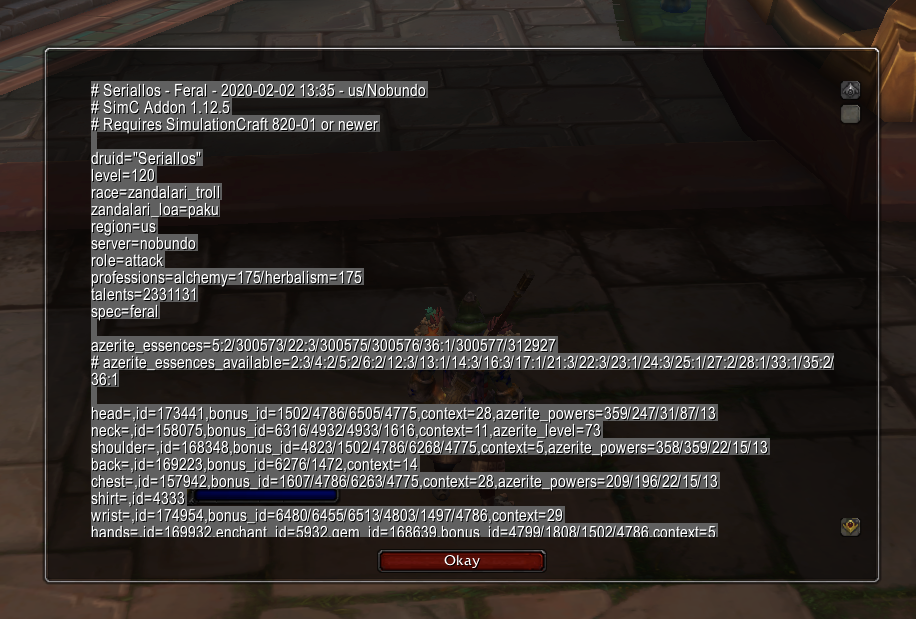
That text contains everything the simulator needs:
- Class, spec & race and character level
- Your full talent loadout
- Every equipped item with its exact item level, enchants, gems and bonus IDs
- Your bag items, listed as alternatives you can sim against your current gear
Step 3: Sim it in your browser
Now you just need something to run the profile. The simplest option is right here: paste your profile, choose what you want to know, and hit Run. Everything runs locally in your browser via WebAssembly. No downloads, no uploading your data, no server queue.
SimC Profile
Then choose a mode depending on what you want to find out:
Within a minute you get a ranked breakdown: your current DPS, and exactly how much each item or upgrade changes it:
- Paste your /simc profile into the box (or import straight from the Armory).
- Pick a mode: DPS Sim for a single number, or Droptimizer / Gear Compare to rank your upgrades.
- Hit Run and read the results.
Other ways to run SimC
This tool covers the vast majority of what most players need, but it's worth knowing the alternatives:
- Run it locally. Build SimulationCraft from its GitHub repository to run the full desktop app (GUI or command line). It's the most powerful and configurable option, but it means installing software and keeping it updated yourself.
- Raidbots. The best-known cloud option: raidbots.com runs SimC on its own servers, handy for very heavy batch jobs, though large sims can queue and some features sit behind a subscription. See the full Raidbots comparison.
For day-to-day gearing decisions, though, you don't need any of that. Paste your profile, pick a mode, and sim. It's free, instant, and entirely in your browser.
Keep reading
- Free Droptimizer guide — rank every dungeon and raid drop by DPS gain, no premium needed.
- Sim for Mythic+ — Patchwerk numbers lie for dungeons; use the right fight style.
- Great Vault picks — sim your vault choices before you commit.
- Stat weights & target error explained — what the numbers actually mean.
- Raidbots alternative — how this tool compares, feature by feature.